

“Can everyone turn their cameras on please?”
A lot of us dread those words, but few of us consider the impact of the words on some of our colleagues.
Setting the Scene…
Another person, sometimes even a person in a position of authority, has directed someone else to expose their vulnerability and come onto camera. Panic sets in – carefully considering the options and fearful of repercussion, the individual reluctantly turns on the camera. Exposed, broken, and on view in front of people they may or may not know, they summon every ounce of strength inside to get through the rest of the meeting.
Or maybe they don’t – maybe they feign a technical issue. Maybe they pretend not to hear. Maybe they just decide to not oblige and hope the meeting is big enough that no one notices.
But sometimes, they may find themselves in the midst of a flashback – a terrible, vivid memory that makes it difficult to distinguish between reality and imagination. Thrown back to a time in which they were also made to feel vulnerable and exposed with no warning and no escape. By the time they get their bearings straight, the call is over. They have no idea of the content discussed and find themselves in need of some time and space to regroup.
What can be done about it
PTSD and CPTSD fall under the neurodiversity umbrella. In addition, nearly 6% of the population in the UK have anxiety disorders. Let’s explore ways we can make Teams calls more inclusive for everyone.
For those of us who are leading calls and asking our colleagues to participate, think about what is truly necessary to achieve the task at hand. Do we have to have cameras on to achieve our goal?
Maybe you just want everyone to feel more connected. There are lots of ways to do this, including icebreakers and team builders.
And consider this – you might also receive more input from someone who is more comfortable with the camera off. Better decisions come from gathering more information.
For those who find themselves uncomfortable on camera, there are alternatives that may assist. One possible solution is creating an avatar in Microsoft Teams to represent you in a “cameras on” meeting.
Here’s how you do it – Creating an Avatar
1. Install the Avatars app from the Teams Apps section.
a. Click the Apps button
b. Search for Avatars
c. Select Avatars from the right

2. Open the Avatars app and select your preferred way to create an avatar – today I want to try a new feature called “Create from photo.”
If you are going to create from an existing photo, there are requirements that need to be met:
- .jpeg, .bmp or .png format
- 26-x26- to 4096×4096 and not exceed 10 MB
- Directly face the camera, face in centre of image
- Neutral facial expression
- Remove sunglasses and headwear if possible
- Image is taken in a well-lit environment
I really don’t want to search through all my photos and meet the requirements (shout out to ADHD for that one), so I am going to try the “Use Camera” feature and do this with my webcam.
Side note – I apparently don’t take this seriously and require several takes.

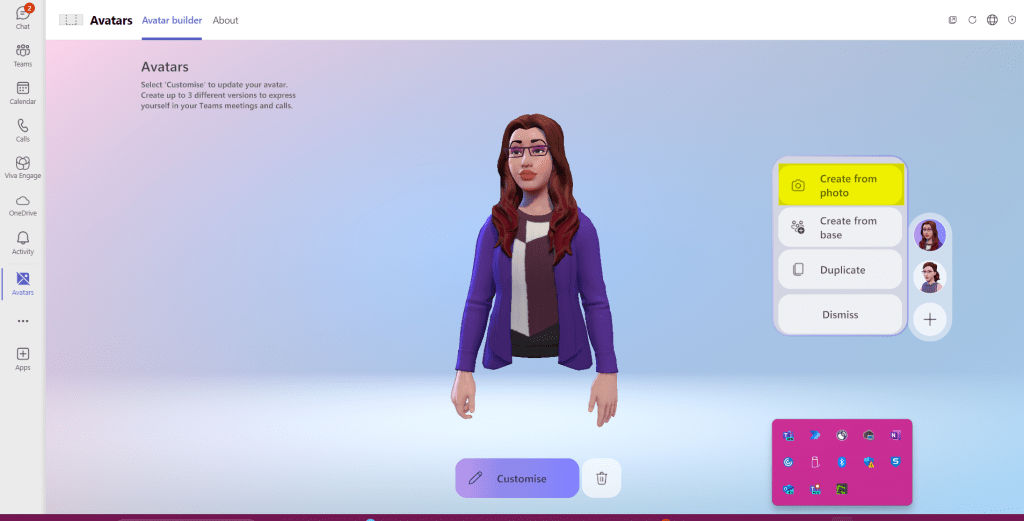


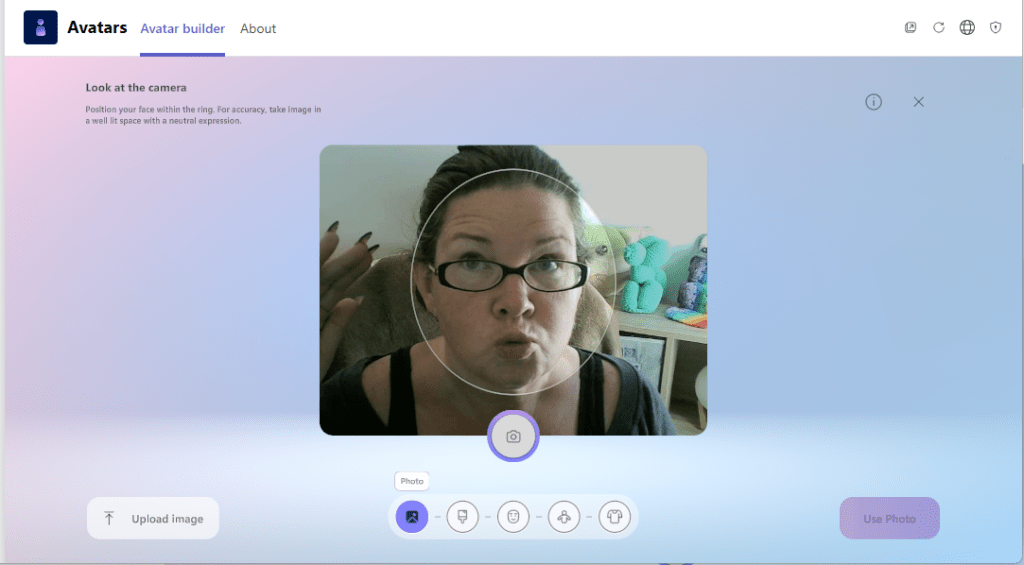
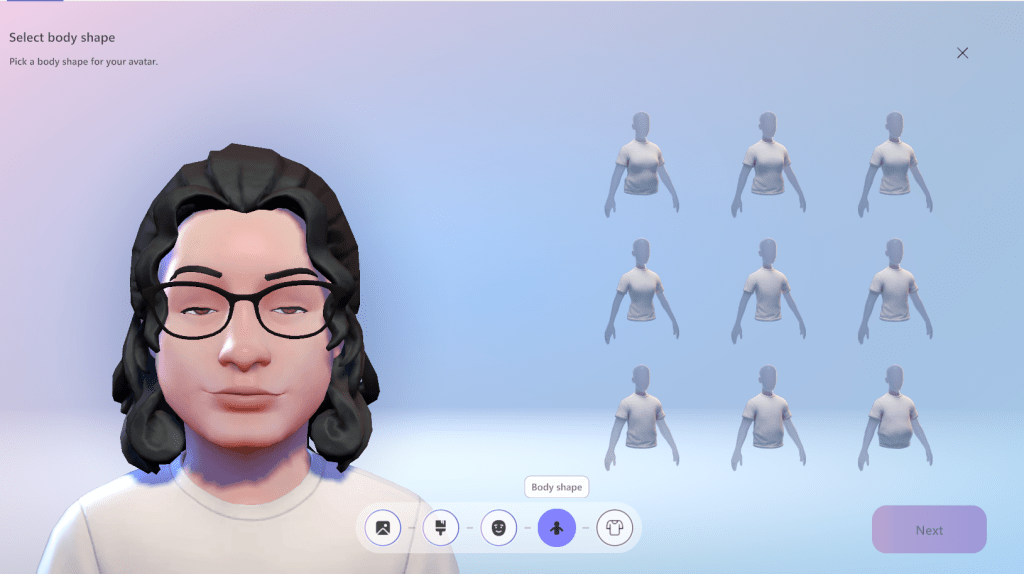
3. Adjust your avatar’s appearance to your preference.
With my photo option, I am able to select a body type, then clicking Save and Edit allows me to adjust various aspects of my Avatar, such as body shape, hair, clothing and more! When you are happy with the result, click Finish Customizing to save your Avatar.
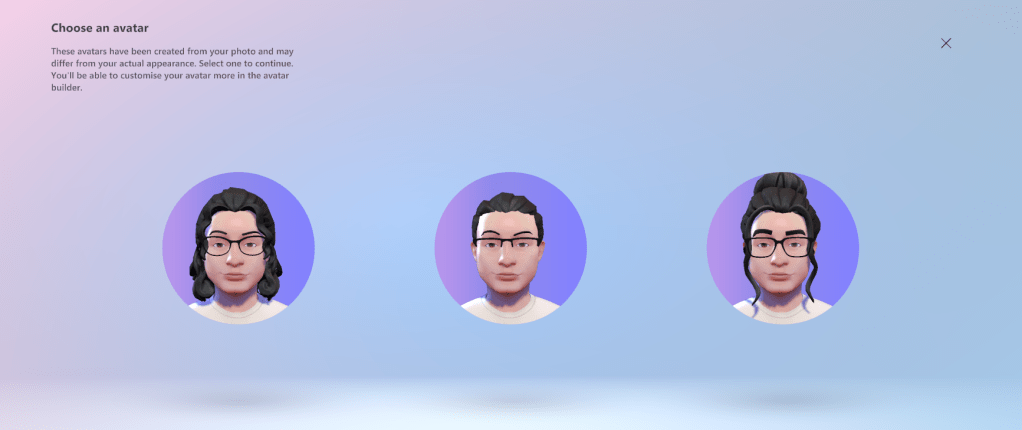
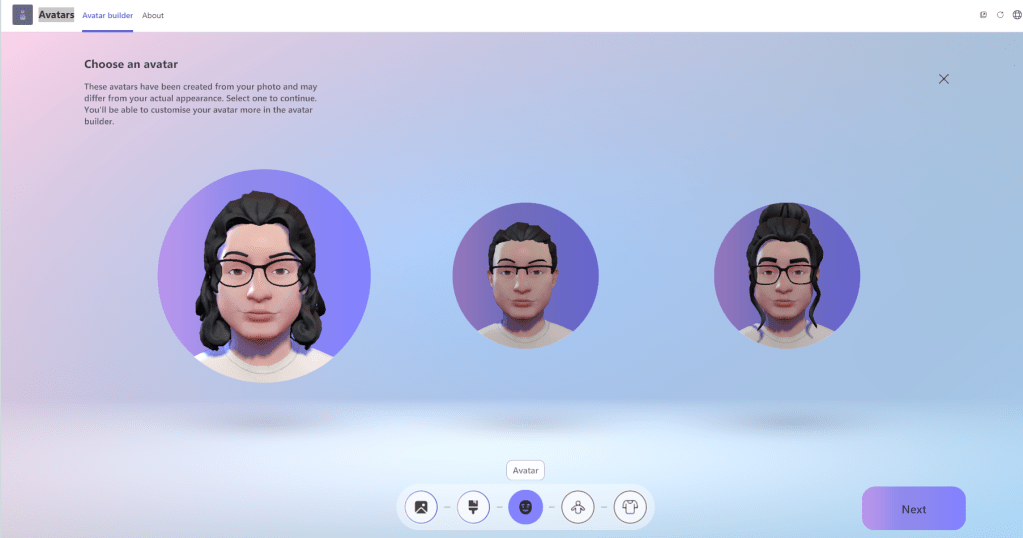



Use your Avatar in a meeting
To use your avatar in a meeting, start with your camera off.

Click on the Effects and avatars option to select the avatar you would like to use. You can also select a background. After you have made your selections, click Join now to attend the meeting.

While in the meeting
During the meeting, you can express emotions with your avatar through the More button, then Avatars and Effects. You can even set your Avatar’s mood!


You Did It!
I hope this was helpful – as we learn more about each other, we can continue to do better and strive for an inclusive workplace.
For further information on Avatars in Teams, visit Microsoft Support
For more information on PTSD, visit https://www.ptsduk.org/
 Techcessability